
Week 5
Aim:
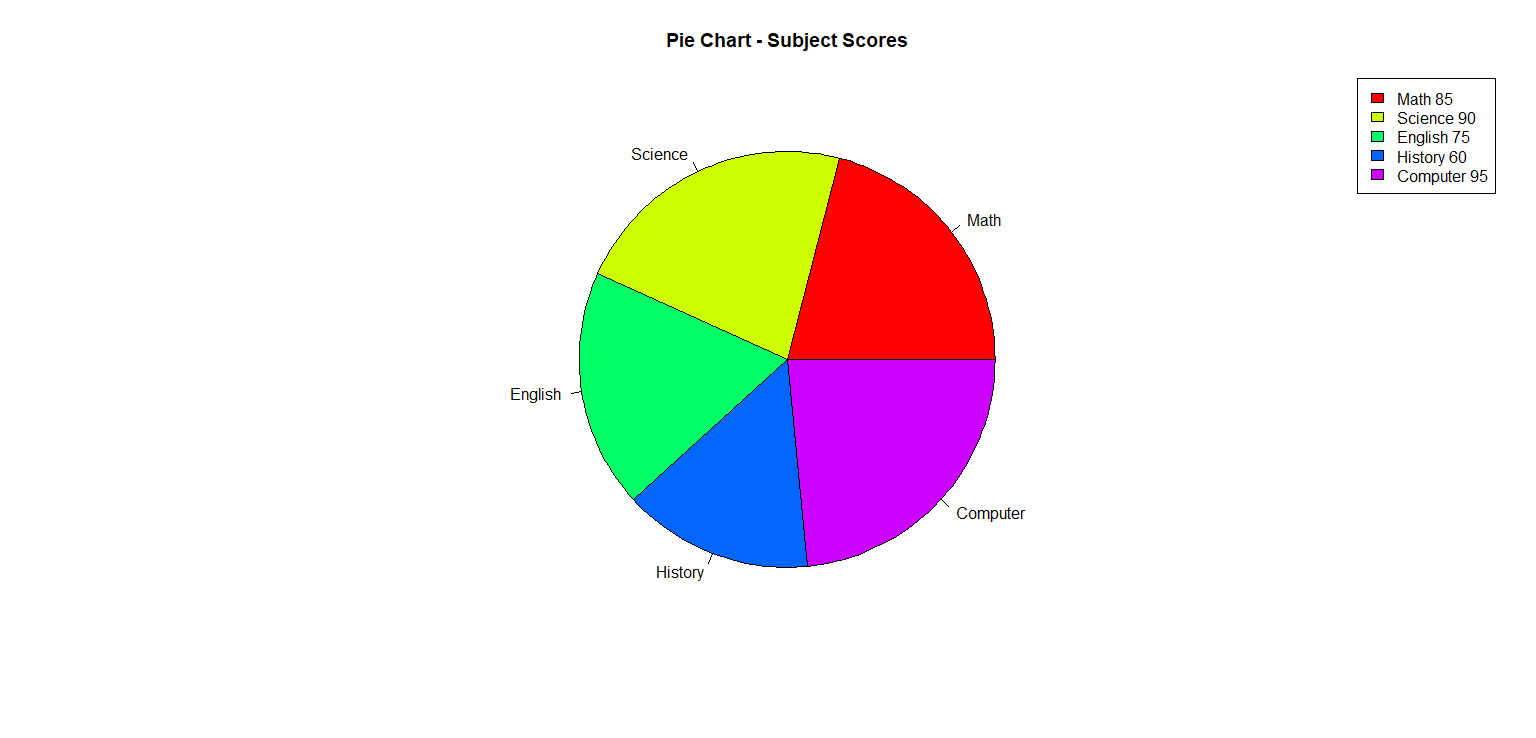
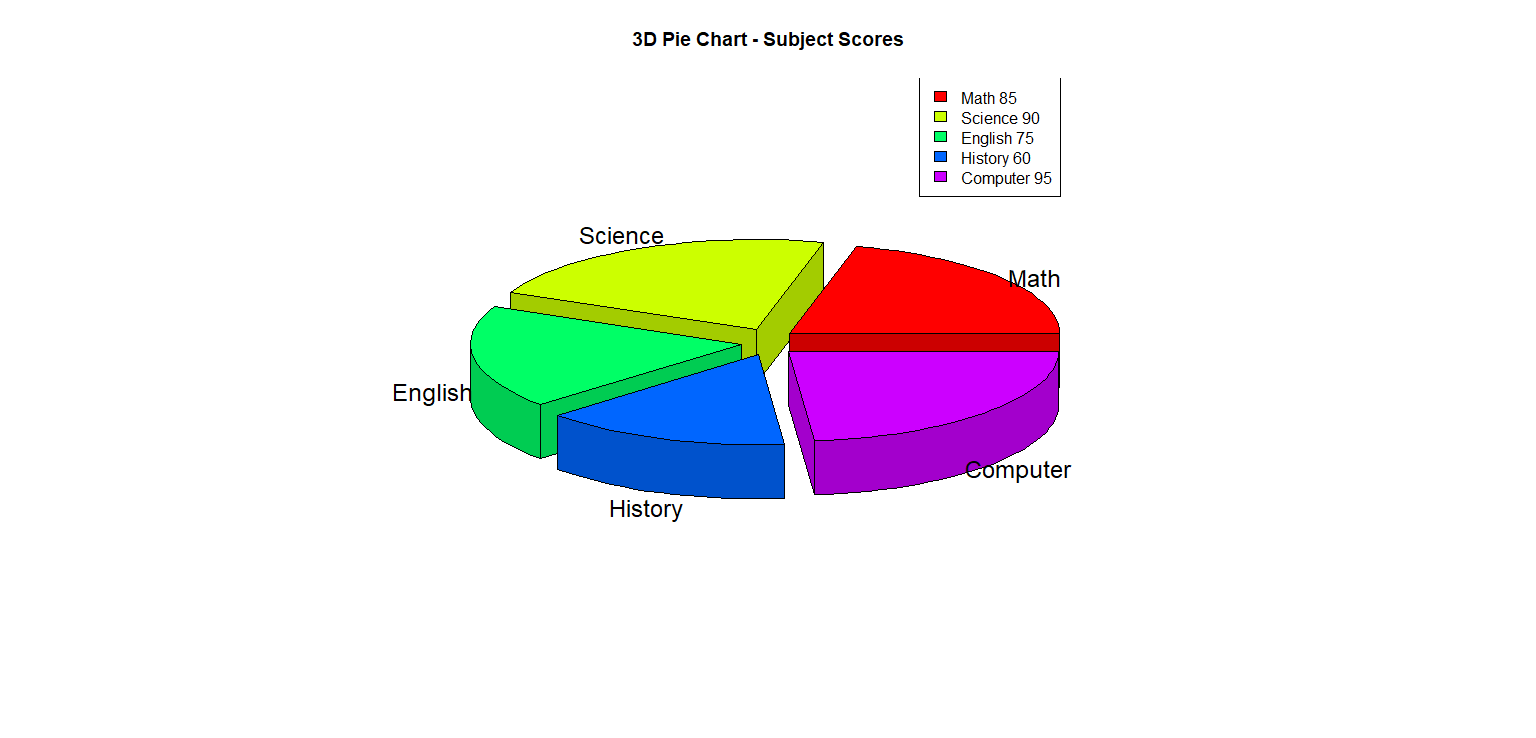
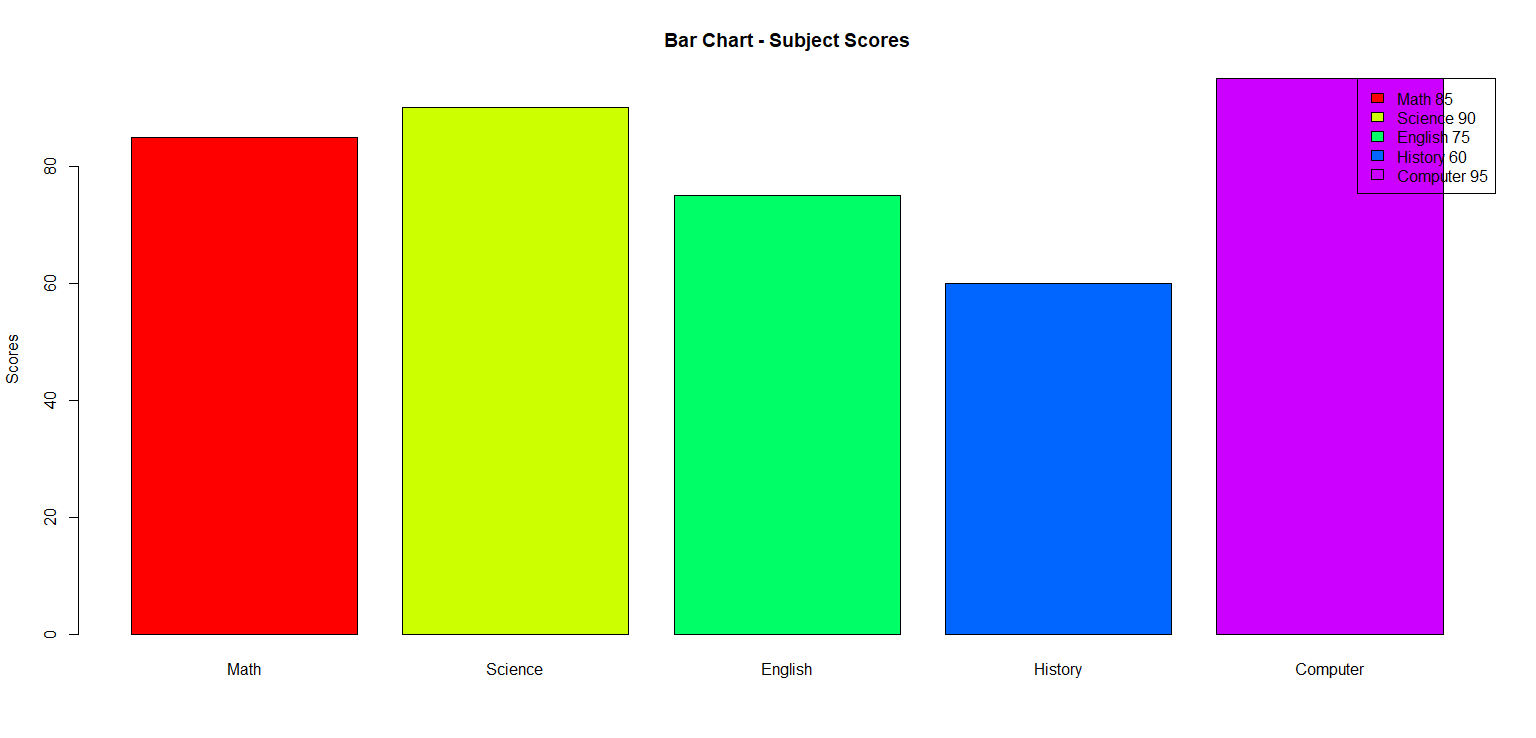
☛ Write an R program to draw i) Pie chart ii) 3D Pie Chart, iii) Bar Chart along with chart legend by considering suitable CSV file.
Solution :
CSV file : "scores.csv"
Subject,Score
Math,85
Science,90
English,75
History,60
Computer,95
To Download above CSV file : Click Here
R Program: charts.R
# Install and load plotrix package for for 3D Pie Chart
if(!require(plotrix)) {
  install.packages("plotrix")
  library(plotrix)
}

# Read the CSV file
data <- read.csv("scores.csv")

# Extract subjects and scores
subjects <- data$Subject
scores <- data$Score

# Set colors for charts
colors <- rainbow(length(scores))

# Pie Chart with Legend
pie(scores, labels = subjects, col = colors, main = "Pie Chart - Subject Scores")
legend("topright", legend = paste(subjects, scores), fill = colors)

# To display multiple windows
windows()

# 3D Pie Chart with Legend
pie3D(scores, labels = subjects, col = colors, explode = 0.1, main = "3D Pie Chart - Subject Scores")
legend("topright", legend = paste(subjects, scores), fill = colors)

# To display multiple windows
windows()

# Bar Chart with Legend
barplot(scores, names.arg = subjects, col = colors, main = "Bar Chart - Subject Scores", ylab = "Scores")
legend("topright", legend = paste(subjects, scores), fill = colors)
Output:
PIE CHART
3D PIE CHART
BAR CHART
💻 Run This R Program
Week 5
The selected R program is loaded
automatically into the editor.
Edit the program, provide input if required
and click Run.
The compiler is embedded using OneCompiler.
Your R program runs inside the embedded R environment;
Study Glance does not execute R code directly on your web
server. Programs that draw charts (pie, bar, box plots,
histograms), read a CSV file from your own computer or
install packages may not behave the same way in an online
sandbox. Run those in RStudio or the R console.