Installing R
R programming is a very popular language and to work on that we have to install RGui.
Installing R to the local computer is very easy. First, we must know which operating system we are using so that we can download it accordingly.
The official site https://cloud.r-project.org provides installer files for major operating systems including Windows, Linux, and Mac OS.
Install R in Windows
To install R on your Windows, just follow these steps:
- Download the R Installer File
- Run the Installer
- Install R
- Add R to the PATH Environment Variable Manually
- Verify the Installation
Step 1: Download the R Installer File
Go to the official R Project website (https://cloud.r-project.org) and download the latest version of R for Windows.
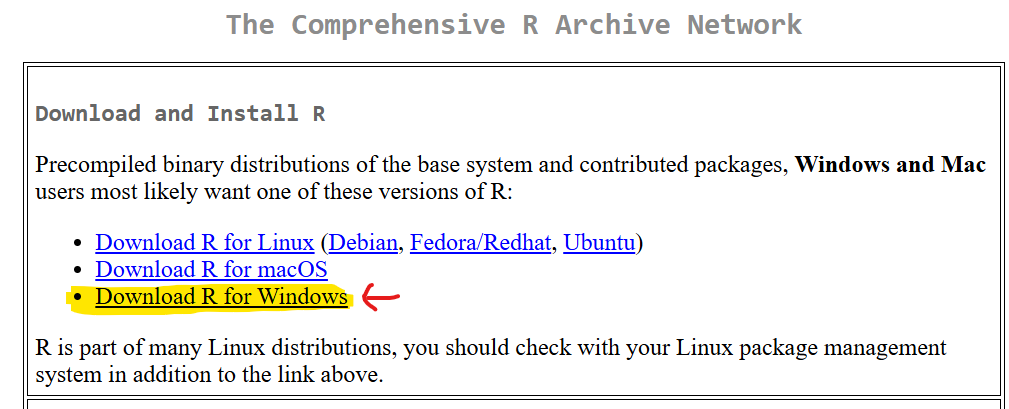
To proceed, please click the link labelled Download R for Windows.
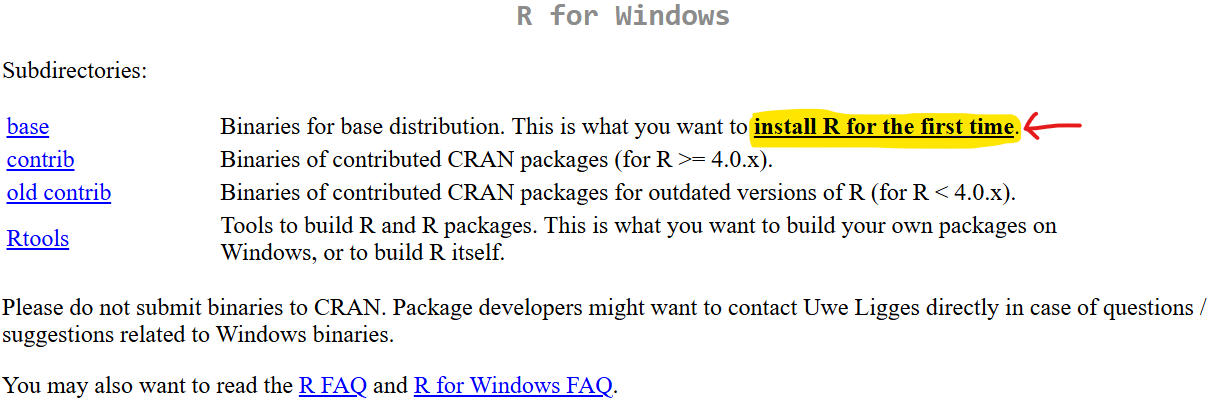
To proceed, please click the link labelled install R for the first time.
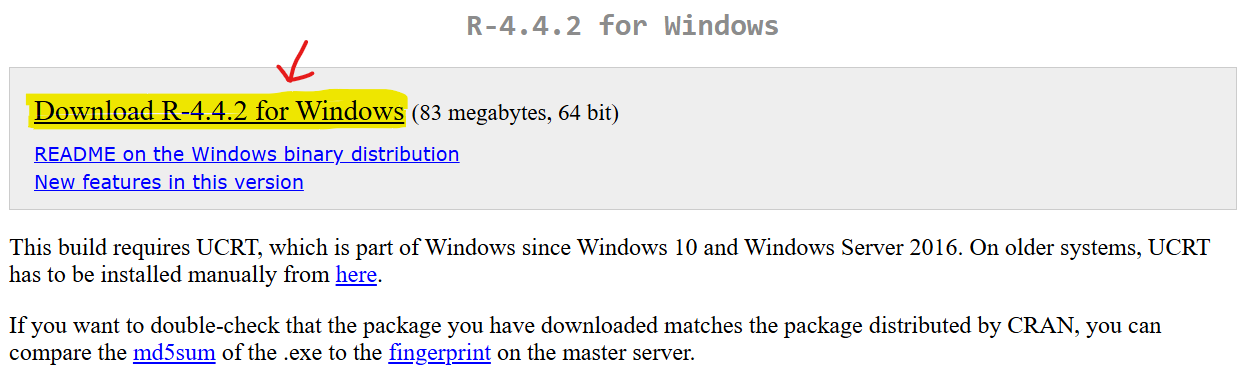
To proceed, click the link labelled Download R-4.4.2 for Windows. Subsequently, the R Installer File will begin to download.
Step 2: Run the Installer
Open your downloads folder and double-click on the R installer file that you just downloaded.
You may be required to grant access based on your security configurations. Please permit it and continue.
Step 3: Install R
After executing the installer, you will encounter this screen.
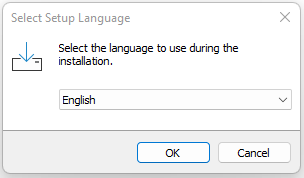
Select your desired language. (Here English) and click on OK button.
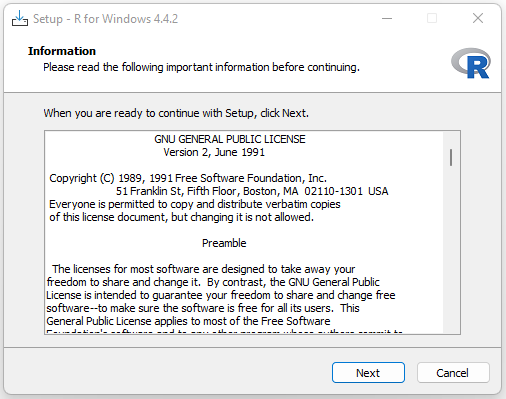
And then click on Next button to accept licenses agreements.
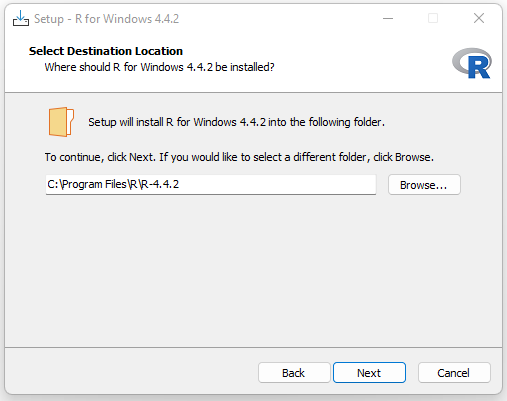
You will be prompted to specify the installation directory. The default location is C:\Program Files\R\. You may retain this setting and continue with the installation by clicking on Next button.
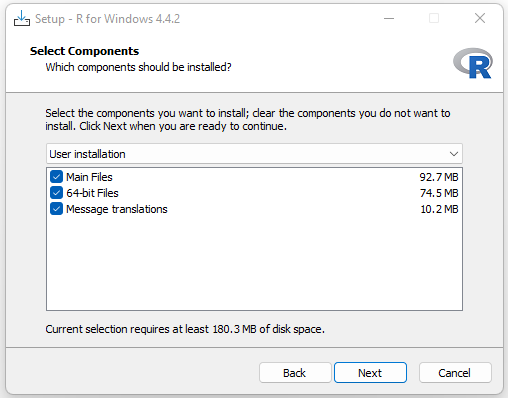
The installer will then prompt you to choose components and where to place shortcuts. Click Next button to continue installation.
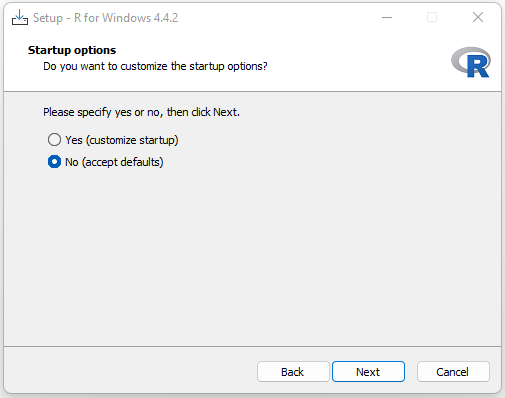
Select Start-up options, then click Next button.
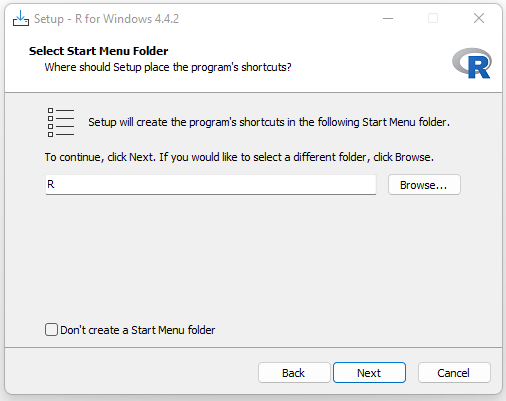
Select Start Menu Folder, then click Next button.
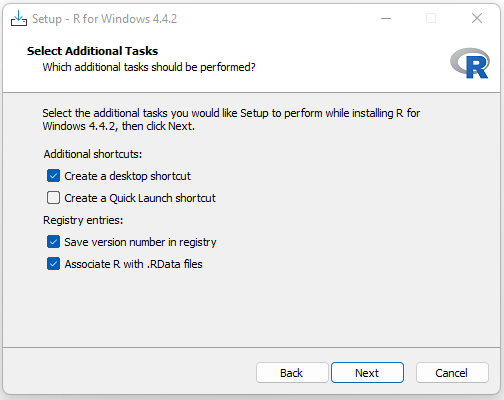
Select Additional Tasks, then click Next button.
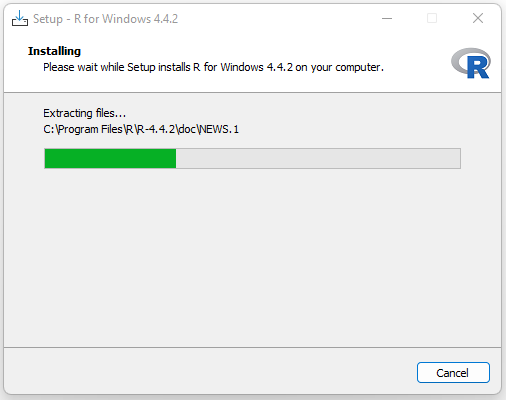
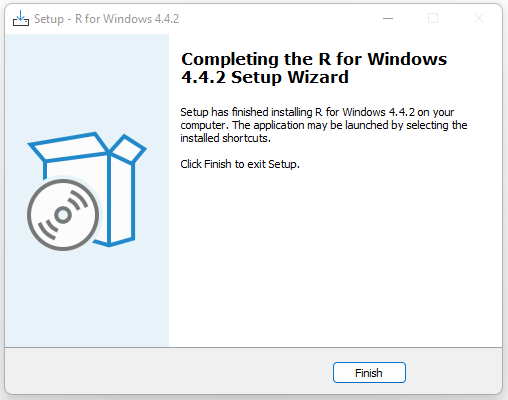
Setup has finished installing R for Windows 4.4.2. Click Finish to exit the installer.
Step 4: Add R to the PATH Environment Variable Manually
It is essential to manually set that the PATH environment variable of your system is configured properly. To add the PATH environment variable, please follow these steps.
- Copy the path where R is installed to the bin folder. (Usually, it is in C:\Program Files\R\R-4.4.2\bin)
- Right-click on This PC and select Properties.
- Click on Advanced System Settings and then Environment Variables.
- Under User and System Variables sections, find and select Path, then click Edit.
- Click New and paste the path.
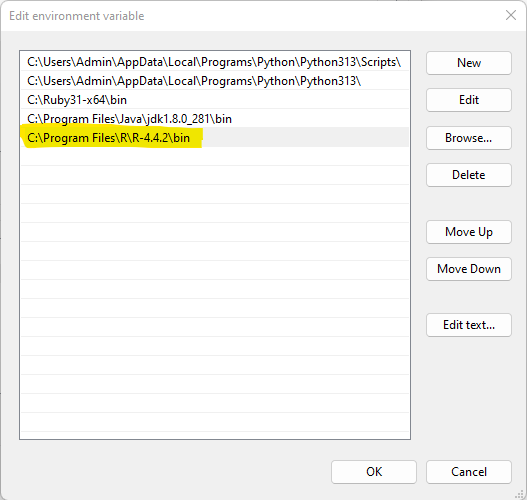
Click OK to close all dialogs and apply the changes.
Step 5: Verify the Installation
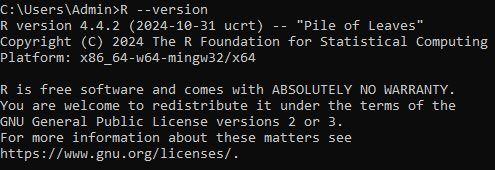
After the installation is finished, you can confirm that R has been installed correctly by opening a command prompt (cmd) and entering the following command:
R --version
Install R in Linux (Ubuntu)
Installing R on Linux is as simple as following three steps.
Step 1
In the initial step, it is essential to update all necessary files within our system by executing the command sudo apt-get update.
Step 2
In the second step, we will proceed to install the R programming language on our system by utilizing the command sudo apt-get install r-base.
Step 3
In the final step, we need to type R and hit enter to start using the R editor.