Package Management with RubyGems
In Ruby programming, sometimes we need additional functionality to develop applications. Instead of writing all the code ourselves, we can use libraries and packages that are already developed by other programmers.
RubyGems is a package management system that helps Ruby programmers install, update, remove and manage reusable libraries called gems.
What is a Gem?
A gem is a package that contains reusable Ruby code, libraries or applications. It helps programmers use existing code in their projects.
For example, if we want to develop a web application, we can use the Rails gem.
The following are examples of popular Ruby gems:
| Gem Name | Purpose |
|---|---|
| Rails | Developing web applications |
| Sinatra | Developing lightweight web applications |
| Devise | Providing user authentication |
| Puma | Running Ruby web applications using a web server |
| RSpec | Testing Ruby programs |
Installing RubyGems
RubyGems is normally included with standard Ruby installations.
To check whether Ruby and RubyGems are installed, open Command Prompt or Terminal.
Check Ruby version:
ruby -vCheck RubyGems version:
gem -vIf both commands display version numbers, Ruby and RubyGems are available.
If RubyGems is not available, first you will need to download and install the RubyGems system from the project's home page at https://rubygems.org/pages/download. After downloading and unpacking the distribution, you can install it using the following commands.
cd rubygems-4.0.24
ruby setup.rb
Using RubyGems to manage packages or gems
RubyGems provides various commands to manage packages or gems. Some of them are,
1. Display RubyGems version
The gem -v command is used to display the version of RubyGems.
Example:gem -v4.0.202. Display installed gems
The gem list command is used to display all installed gems.
Example:gem listabbrev (0.1.2)
base64 (0.3.0)
benchmark (0.5.0)
bigdecimal (4.0.1)
bundler (default: 4.0.20)
csv (3.4.1)
...3. Search gems
The gem search gem-name command is used to search for gems related to gem-name. In other words, it displays all gems that match the specified gem name.
Example:gem search csvabc_csv (0.0.1)
acsv (0.0.1)
acsv-p (0.3.0)
act_as_csv (0.1.1)
...The above command displays all gems related to csv.
4. Installing a gem
The gem install gem-name command is used to install a specified gem.
Example:gem install sinatraSuccessfully installed sinatra-4.2.15. Updating installed gems
The gem update command is used to update all the installed gems or a specific gem.
Example 1:gem updateUpdates all installed gemsgem update sinatraUpdates sinatra gem6. Information of a gem
The gem info command is used to display the information about the specified gem.
Example:gem info sinatrasinatra (4.2.1)
Authors: Blake Mizerany, Ryan Tomayko, Simon Rozet, Konstantin Haase
Homepage: http://sinatrarb.com/
License: MIT
...7. Uninstalling a gem
The gem uninstall command is used to remove / uninstall a specified gem.
Example:gem uninstall sinatraremoves sinatra gemUsing a Gem in a Ruby Program
After installing a gem, we can use it in our Ruby program with the require statement.
Example:require 'sinatra'
get '/' do
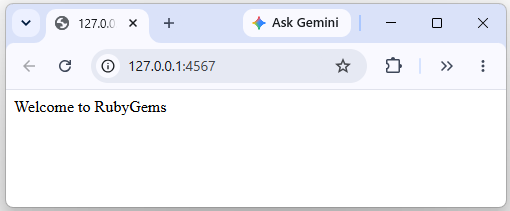
"Welcome to RubyGems"
endTo run this program, save it as app.rb and execute:
ruby app.rbThen open http://localhost:4567 in a web browser.
Note: You need to install puma to run Ruby web applications. Use the following command to install puma.
gem install puma