
Demonstration of creating a Student dataset (student.arff) using WEKA tool in Data Mining.
Creating a student dataset (student.arff):
Description:
We need to create a Student Table with training data set which includes attributes like sid, name, various subject marks, total and result.
Procedure:
Steps:
1) Open any text editor (e.g. Notepad)
2) Type the following training data set in the Notepad.
	@relation student

	@attribute sid numeric
	@attribute name string
	@attribute DM numeric
	@attribute DAA numeric
	@attribute CN numeric
	@attribute IDS numeric
	@attribute CG numeric
	@attribute IRS numeric
	@attribute total numeric
	@attribute result {pass, fail}

	@data
	1, pavan, 60, 65, 55, 50, 50, 54, 334, pass
	2, vishal, 70, 54, 46, 48, 58, 56, 332, pass
	3, rajesh, 60, 55, 40, 50, 40, 76, 321, pass
	4, kiran, 60, 55, 30, 50, 40, 55, 290, fail
	5, suresh, 60, 55, 45, 60, 40, 66, 326, pass
	6, manish, 60, 55, 65, 50, 20, 37, 287, fail
3) After that save the file with .arff file format.
4) Minimize the arff file and then open Start → Programs → weka-3.8.6.
5) Click on weka-3.8.6, then Weka GUI chooser is displayed on the screen.
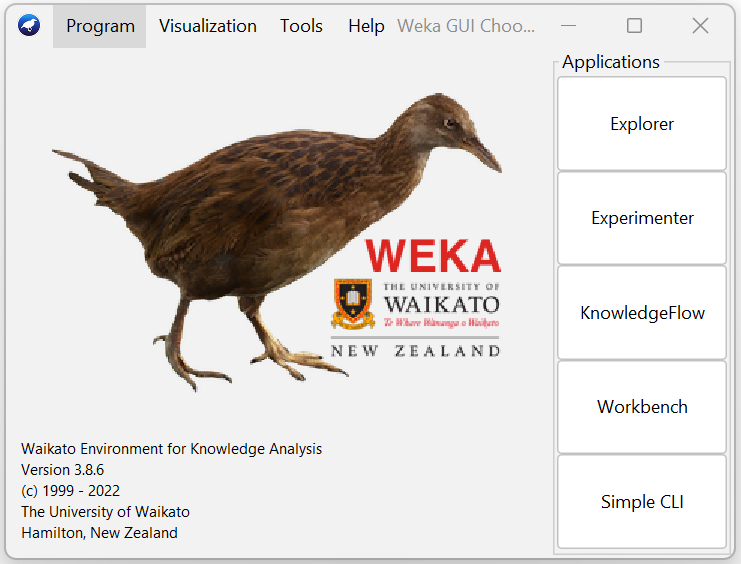
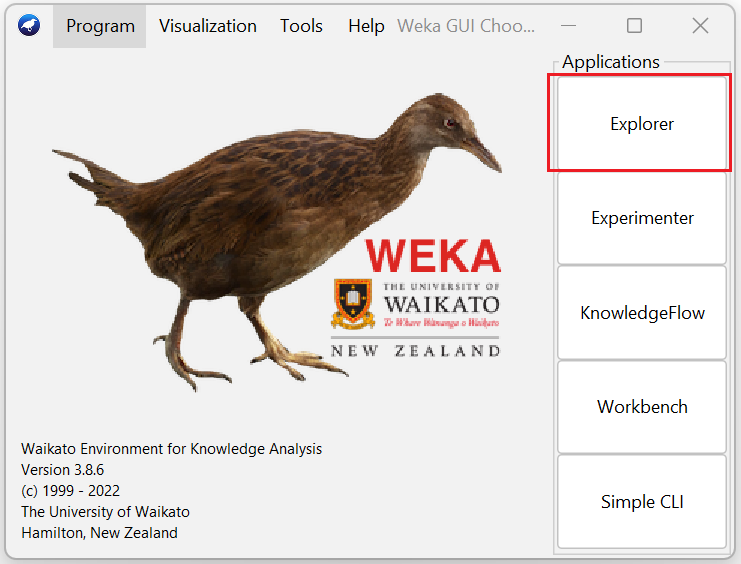
6) In that Weka GUI chooser there are five applications, click on Explorer.
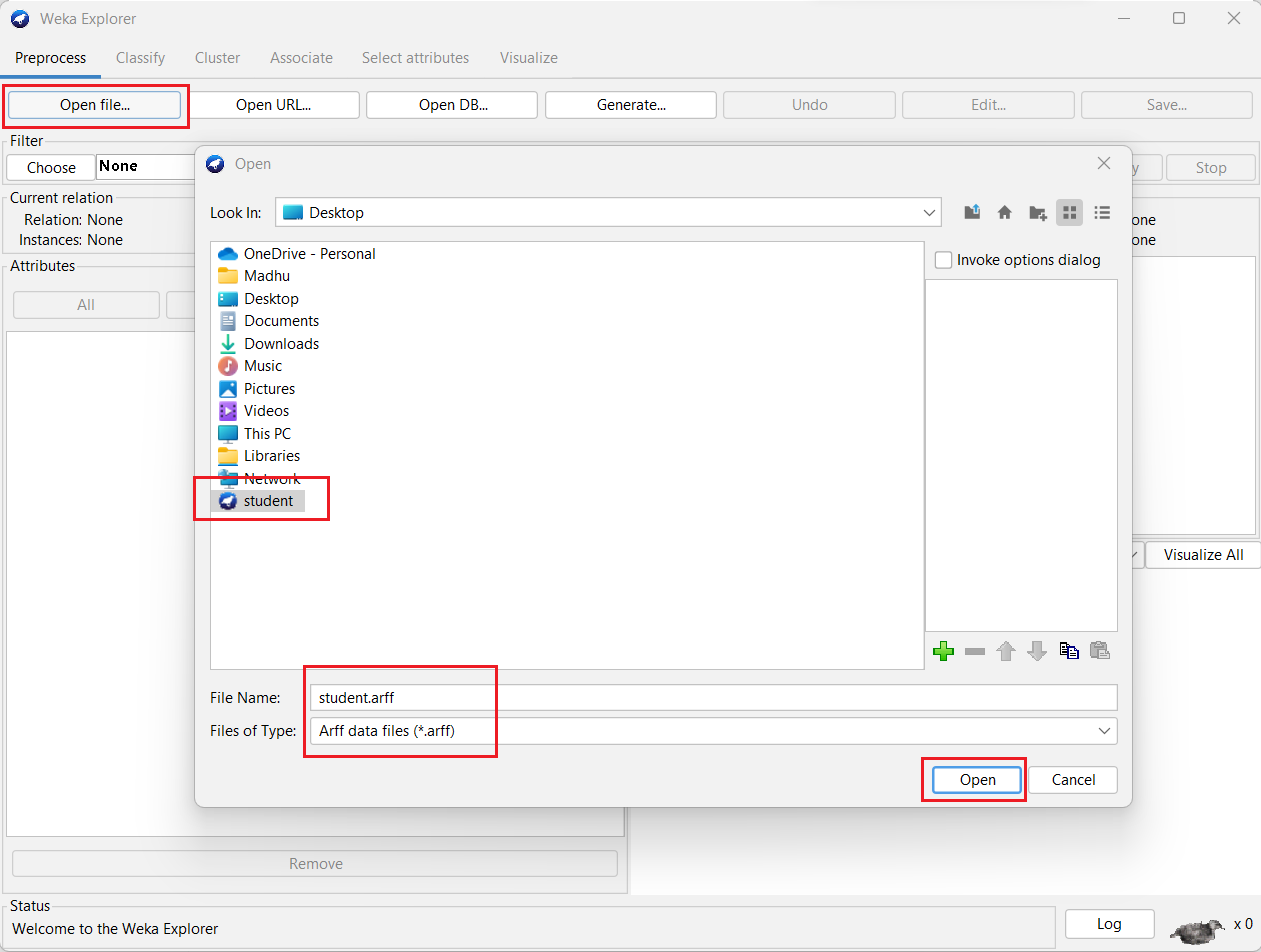
7) Explorer shows many options. In that click on 'Open file...' button and select the .arff file (e.g. student.arff).
8) Click on edit button which shows student table on weka.
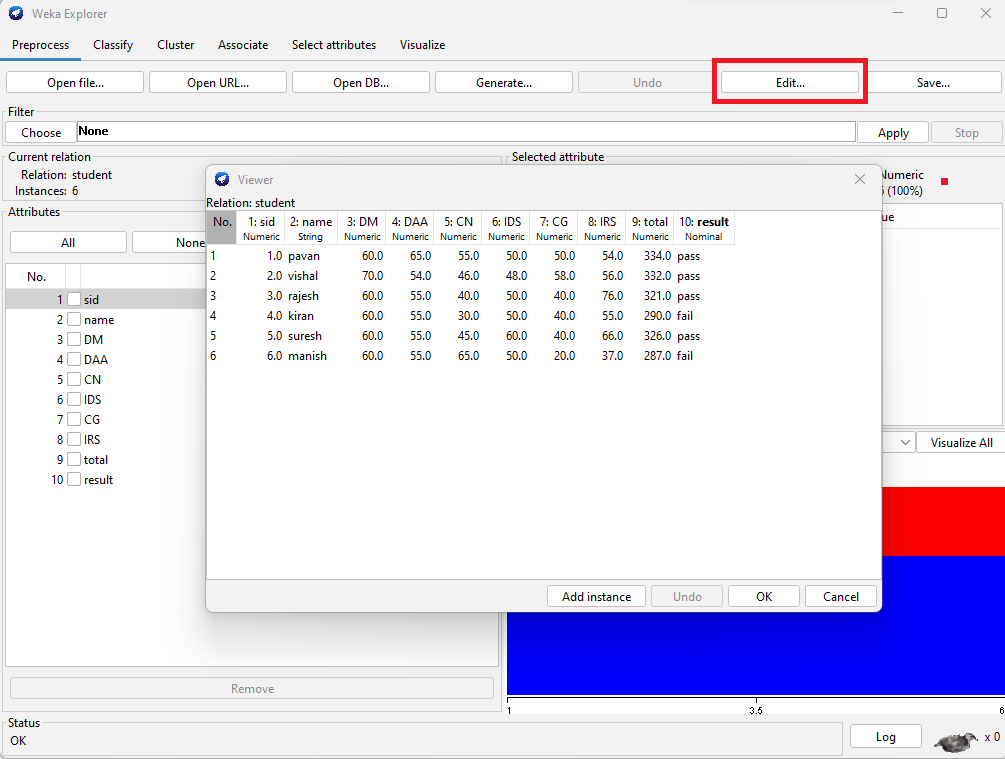
Result:
The student dataset (student.arff) was created successfully using WEKA tool kit.