Start working with WEKA tool kit and understand the features of WEKA tool kit.
What is WEKA:
WEKA, an open-source software, offers a range of tools for data preprocessing, implementation of various Data Mining algorithms, and visualization tools. These resources enable users to develop data mining techniques and effectively apply them to real-world data mining problems.
The diagram presented below provides a concise summary of the offerings provided by WEKA.
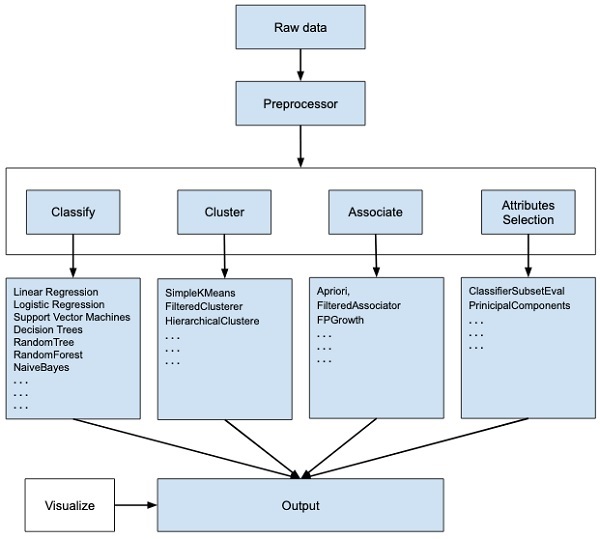
Image Source :https://www.tutorialspoint.com/weka/images/weka_summarized.jpg
To start Weka:
- Search for Weka 3.8.6 and click on Weka 3.8.6 app.
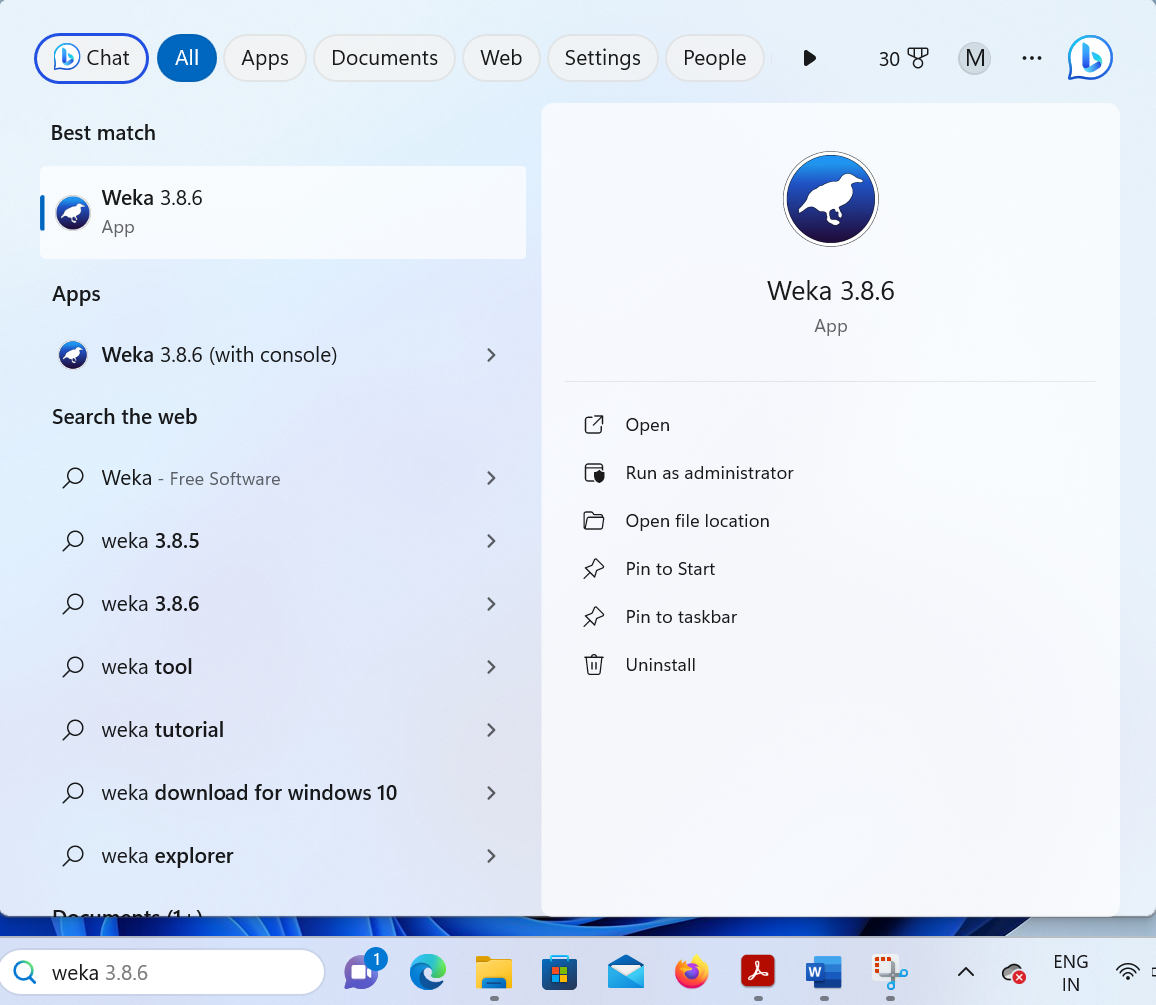
- The following Graphical User Interface Of WEKA you get when you click on Weka 3.8.6 app.
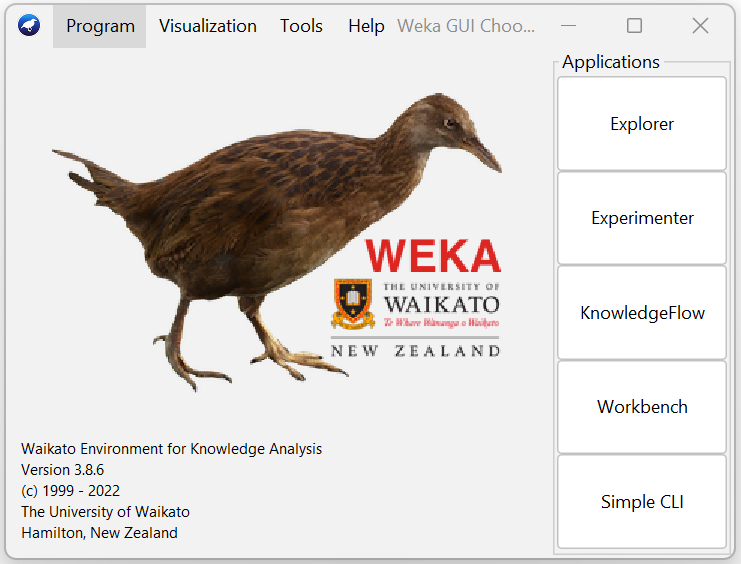
- The GUI of WEKA gives five options: Explorer, Experimenter, Knowledge flow, Workbench, and Simple CLI. Let us understand each of these individually.
1. Explorer
It is an environment for exploring data with WEKA. And it apply the various data mining algorithms. When you click on the Explorer button in the Applications selector, it displays the following window.
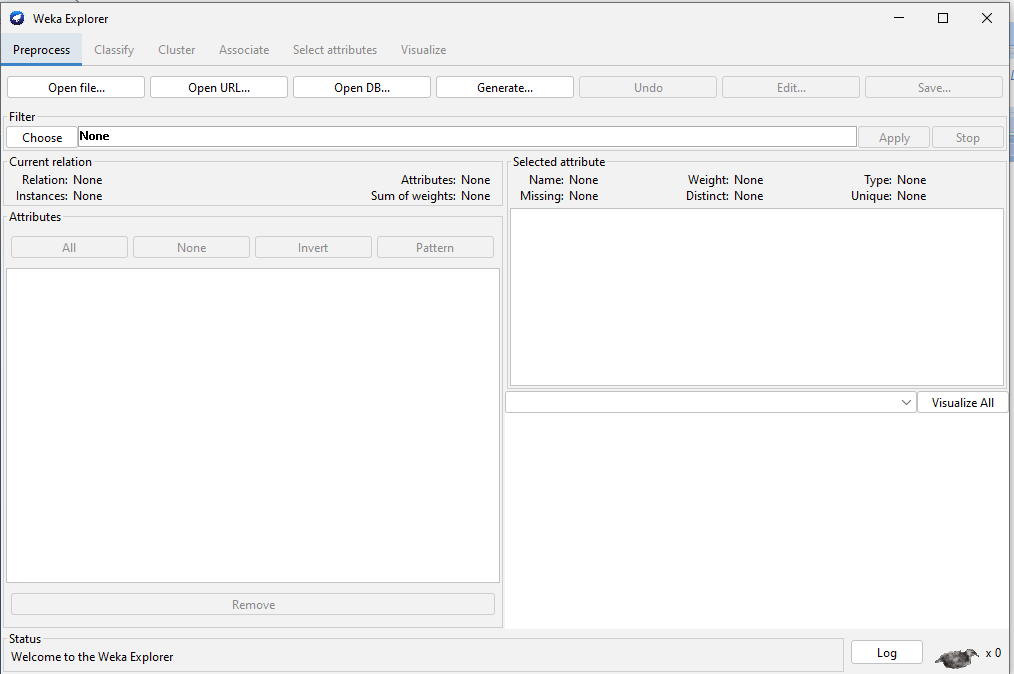
Located at the uppermost section of the window, positioned just below the title bar, is a series of tabs. Upon launching the Explorer, only the first tab is enabled, while the remaining tabs are displayed in an unresponsive manner. This is due to the prerequisite of opening and pre-processing a data set before data exploration.
The tabs are as follows:
☞ Preprocess:
The first step in Data Mining is to preprocess the data. You will select the data file in the Preprocess option. Then, you will process the data and make it suitable for applying the different Data Mining algorithms.☞ Classify:
The Classify tab offers a range of Data Mining algorithms for the classification of your data. Some of the algorithms that can be applied include Linear Regression, Logistic Regression, Support Vector Machines, Decision Trees, Random Tree, Random Forest, Naive Bayes, and others.☞ Cluster:
The Cluster tab contains a variety of clustering algorithms, including Simple K-Means, FilteredClusterer, HierarchicalClusterer, and many more.☞ Associate:
The Associate tab contains Apriori, FilteredAssociator and FPGrowth. These are used to learn / discover association rules in the data.☞ Select attributes:
This tab contains various methods to select the most relevant attributes in the data.☞ Visualize:
In this tab, various plots and graphs are available to show the trends identified by the model. I.e. it displays an interactive 2D plot of the data.2. Experimenter
The Experimenter Environment allows users to easily create, run, modify, and analyze experiments. Users can create experiments that test multiple schemes on different datasets and analyze the results to determine statistical differences between the schemes.
When you click on the Experimenter button in the Applications selector, it displays the following window.
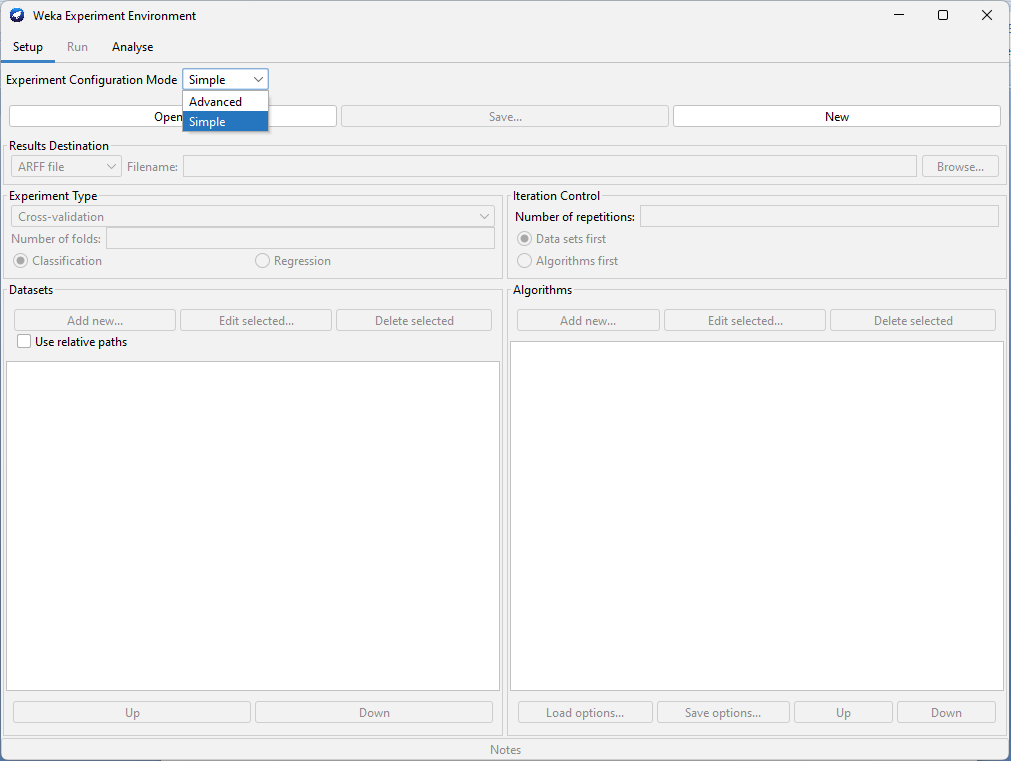
The Experimenter is available in two variants, those are
- Simple
This variant provides most of the functionality one needs for experiments - Advanced
This is an interface with full access to the Experimenter’s capabilities.
3. Knowledge flow
The Knowledge Flow offers an alternative to the Explorer as a graphical user interface for accessing the core algorithms of WEKA.
The Knowledge Flow platform offers an interface that draws inspiration from data-flow principles, specifically designed for WEKA. Users are able to choose components from a selection of WEKA tools, position them on a layout canvas, and establish connections between them. This facilitates the creation of a knowledge flow, enabling efficient processing and analysis of data.
When you click on the Knowledge flow button in the Applications selector, it displays the following window.
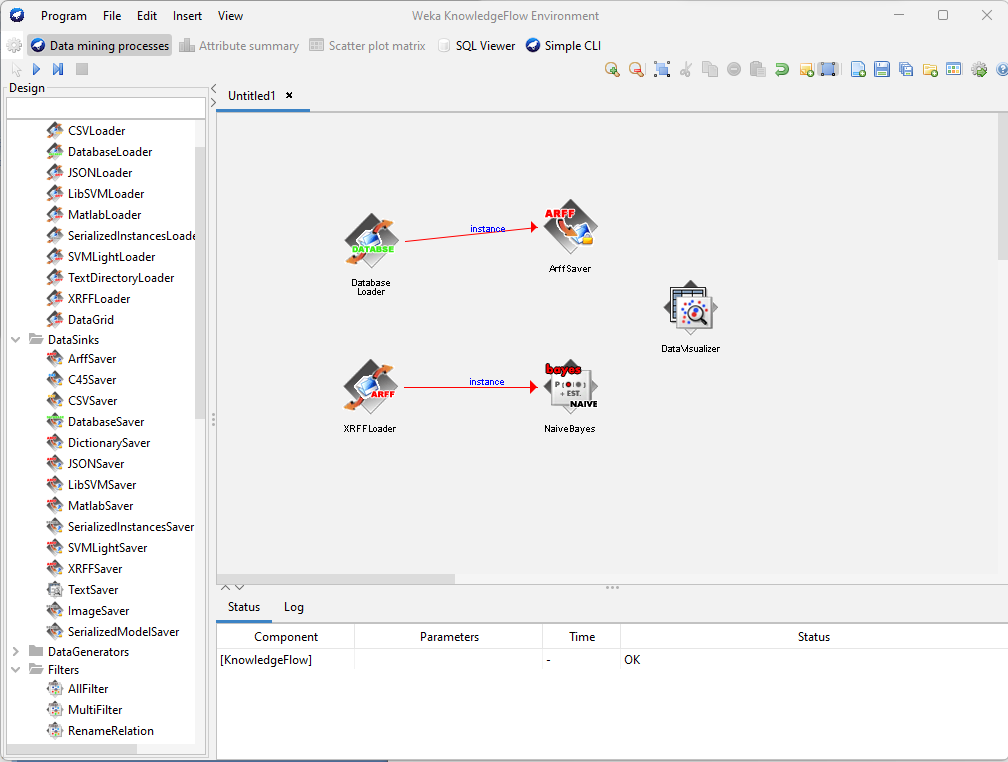
Currently, all classifiers, filters, clusterers, associators, loaders, and savers provided by WEKA are accessible within the Knowledge Flow platform, along with extra tools.
4. Workbench
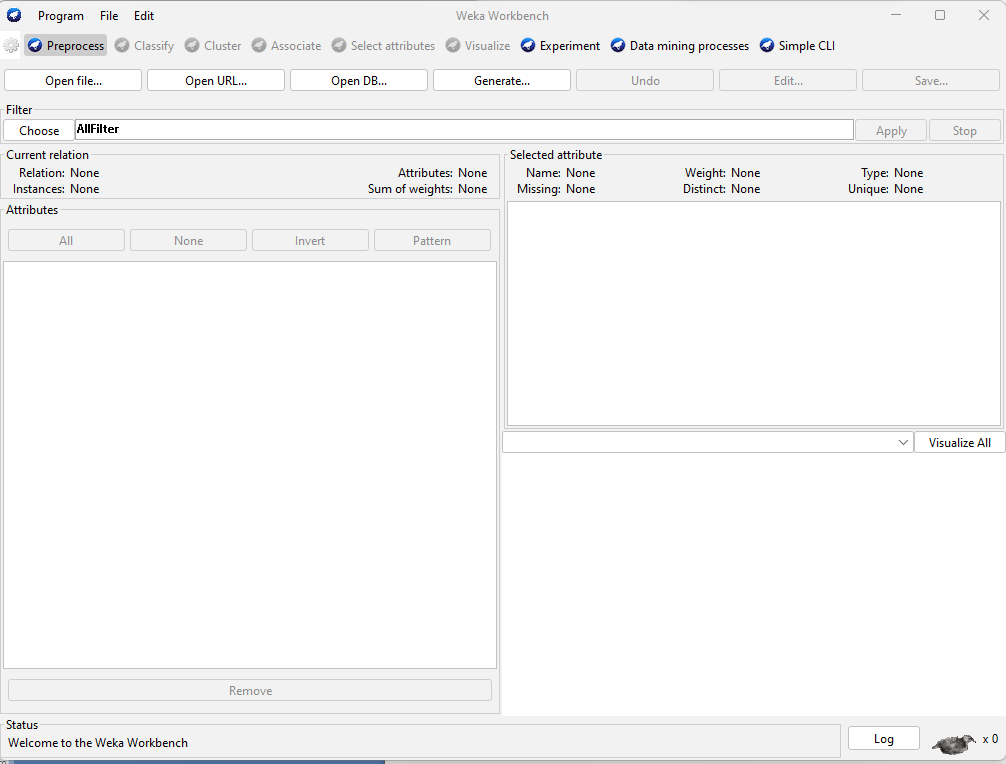
The Workbench is an integrated environment that combines all graphical user interfaces into a unified or single interface.
If you frequently switch between multiple interfaces, such as the Explorer and the Experiment Environment, it can be beneficial. This is often the case when testing various scenarios in the Explorer and promptly implementing acquired knowledge into controlled experiments.
When you click on the Workbench button in the Applications selector, it displays the following window.
5. Simple CLI
The Simple Command Line Interface (CLI) grants comprehensive access to all Weka classes, including classifiers, filters, clusterers, and more, while eliminating the inconvenience of managing the CLASSPATH (it simplifies the one used during Weka's initialization). It presents a straightforward Weka shell with distinct command line and output sections.
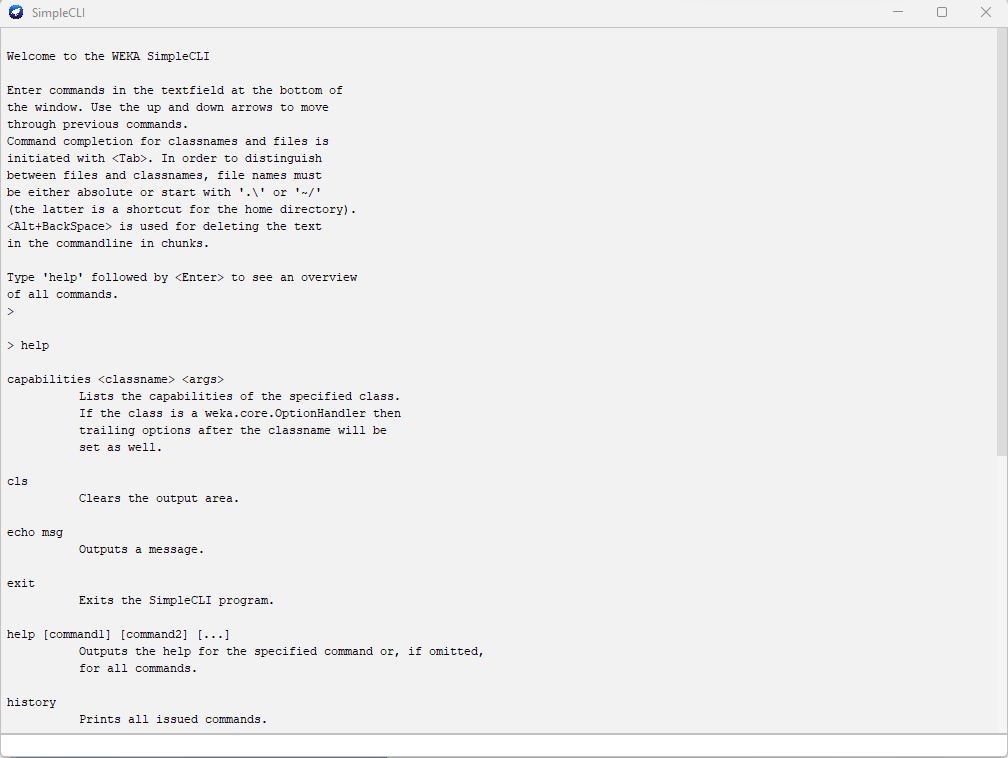
When you click on the Simple CLI button in the Applications selector, it displays the following window.